

How to Deactivate Instagram Account?
- Instagram offers options to either temporarily deactivate or permanently delete an account.
- To permanently delete your account, navigate to the Accounts Center through your settings.
- The process for deleting an account is the same on both desktop and mobile web browsers.
Some people wake up one day, open Instagram and feel like they’ve accidentally wandered into a never-ending high school reunion run by algorithms.
Everyone seems to be getting married, traveling the world or trying to become the next influencer. Which is why deleting Instagram starts to feel less dramatic and more like basic self care.
Others are just tired of all the ads and doomscrolling, so many just either deactivate their account for a while and others decided to fully delete their account.
If you want to take a small break from Instagram instead of deleting your account, here's how to temporarily disable your account.
How do I permanently delete my Instagram account?
This is how to permanently delete your Instagram account, according to Instagram:
-
Click More in the bottom left, then click Settings.
-
Click Accounts Center, then click Personal details.
-
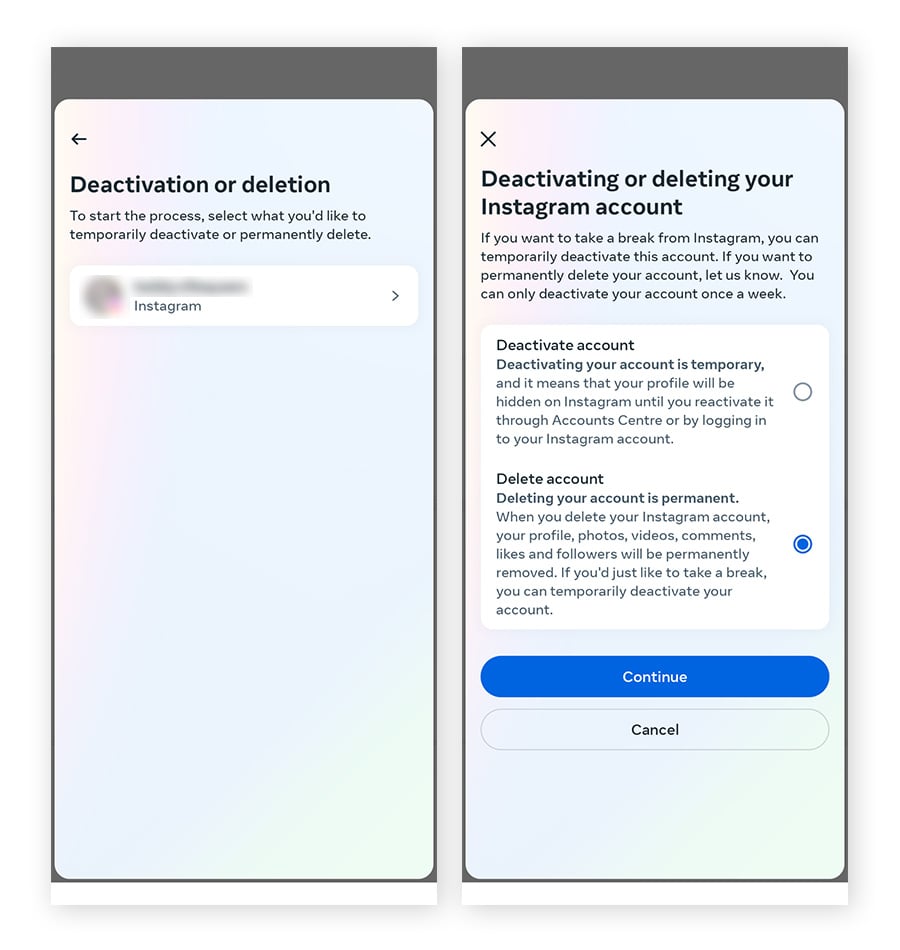
Click Account ownership and control, then click Deactivation or deletion.
-
Click the account you'd like to permanently delete.
-
Click Delete account, then click Continue.
How do I delete an Instagram account from one phone?
You will do the same steps from the web browser on your phone:
- Click More in the bottom left, then click Settings.
- Click Accounts Center, then click Personal details.
- Click Account ownership and control, then click Deactivation or deletion.
- Click the account you'd like to permanently delete.
- Click Delete account, then click Continue.
Meta’s move to replace its third-party fact checkers with an X-like Community Notes feature has alarmed many people. The fear is that without objective fact checking—and a shift to recommend political content—Instagram could become a more divisive and contentious platform, just like X. If those concerns leave you wondering whether it’s time to plug the plug, the site offers a couple of options.
If you just want to take a break from Instagram on the chance that you might return to it in the future, you can deactivate your account. This will render it inactive until you sign back in. If you definitely want to cut the cord, you can delete your account for good. This will remove your profile, photos, videos, comments, likes, and followers. Here's how to perform both actions.
How to Deactivate Your Instagram Account
To disable your account from the mobile app, tap your profile icon on the bottom toolbar and select the hamburger icon in the top-right corner. At the Settings and activity screen, tap the setting for Accounts Center.
How to Delete Your Instagram Account
To permanently delete your account from the mobile app, tap your profile icon on the bottom toolbar and select the hamburger icon in the top-right corner. At the Settings and activity screen, tap the setting for Accounts Center.

If you temporarily deactivate your account, your profile, photos, comments and likes will be hidden until you reactivate it by logging back in. You can only deactivate your Instagram account from a computer, a mobile browser, or the Instagram app.
Keep in mind that you can only deactivate your account once a week.
You’ll need to be able to log into your account to temporarily deactivate it. If you can't remember your password or username, see some tips for logging in.
Temporarily deactivate your Instagram account from Accounts Center
- Log into the Instagram account you’d like to deactivate.
-
Click
More in the bottom left, then click
Settings.

-
Click Accounts Center, then click Personal details.
- Click Account ownership and control, then click Deactivation or deletion.
- Click the account you'd like to temporarily deactivate.
- Click Deactivate account, then click Continue.
- Re-enter your password and click Continue.
- Select the reason to deactivate account, then click Continue.
- Click Deactivate account.
Note: You may not be able to deactivate your account from Accounts Center at this time.If you don't want to deactivate your account but want to change who can see it, you can set your posts to private or block people.Note: Follow these instructions if you'd like to delete your Instagram account.
Feeling overwhelmed by the constant stream of posts and notifications on Instagram? You’re not alone. Many users find themselves at a crossroads, wondering if it’s time to take a break or even step away for good. If you’ve decided that deactivating your account is the right choice for you, let’s walk through how to do it seamlessly.
First off, there are two paths you can take: temporary deactivation or permanent deletion. If you're looking for some space but might want to return later, temporarily disabling your account is an excellent option. This allows you to hide your profile and all associated content without losing any data.
To deactivate your Instagram account temporarily:
- Open a web browser (you can't do this via the app).
- Log in at www.instagram.com with your credentials.
- Click on your profile icon in the top right corner and select 'Edit Profile'.
- Scroll down until you see 'Temporarily disable my account' at the bottom right of the page.
- Choose a reason from the dropdown menu as prompted, then re-enter your password.
- Finally, click ‘Temporarily Disable Account’—and just like that, you've taken a breather from social media!
Now if you're certain about saying goodbye forever and wish to delete your account permanently:
- Again, start by logging into www.instagram.com using any web browser.
- Navigate directly to the Delete Your Account page (you may need to search for this link since it's not prominently displayed).
- Select why you're leaving from their list of options; they ask so they can improve user experience based on feedback.
- Enter your username and password once more when prompted, before clicking ‘Permanently delete my account’. Remember that deleting means all photos, comments, likes—everything—is gone forever! So make sure you've saved anything important before taking this final step.
If you'd rather keep things simple but still want less noise in your feed without going completely offline? Consider muting accounts instead of deactivating entirely! It’s easy: just visit their profiles and choose ‘Mute’ under following options—you’ll still be connected without seeing every post pop up incessantly!
Ultimately whether it’s stepping back momentarily or cutting ties altogether with Instagram—it should feel empowering rather than daunting! Trust yourself as you navigate these choices; after all, social media should serve us—not control us.
eeling overwhelmed by social media? Whether it's for mental health, focus, or simply needing a break from constant scrolling, taking time off Instagram can be refreshing. If you’re not ready to permanently delete your account but want to step away for a while, Instagram gives you the option to temporarily deactivate your account. This feature allows you to hide your profile, posts, comments, and likes without losing any data. When you're ready to come back, all you have to do is log in again to restore everything just the way you left it.
Feeling overwhelmed by Instagram or concerned about privacy? Deactivating your account can provide a break and a fresh start. This blog will show you How to Deactivate Your Instagram Account, what to consider beforehand, and the steps to reactivate it later. Learn to take control of your Instagram presence and enjoy some offline peace.
According to Statista, as of 2025, Instagram has about 2 billion monthly active users globally, ranking among the top four social networks alongside Facebook, YouTube, and WhatsApp. By 2025, Instagram users are expected to reach 1.44 billion, representing 31.2% of global internet users. With such a vast user base, it's important to know how to manage your digital presence effectively. In this blog, we'll explore How to Deactivate Your Instagram Account to help you manage your digital presence effectively.
Explore this blog on How to Deactivate Your Instagram Account to temporarily hide your profile, photos, comments, and likes, offering a break from its intense presence. It covers all necessary steps, considerations before deactivation, and reactivation instructions. Learn how to regain control and enjoy offline peace.
Feeling overwhelmed by Instagram or concerned about privacy? Deactivating your account can provide a break and a fresh start. This blog will show you How to Deactivate Your Instagram Account, what to consider beforehand, and the steps to reactivate it later. Learn to tak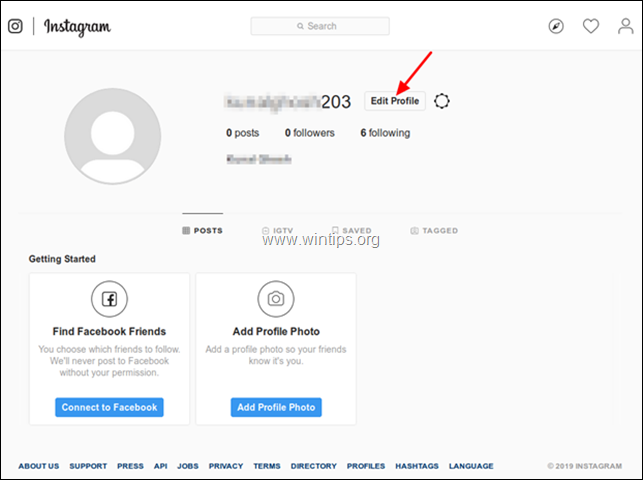 e control of your Instagram presence and enjoy some offline peace.
According to Statista, as of 2025, Instagram has about 2 billion monthly active users globally, ranking among the top four social networks alongside Facebook, YouTube, and WhatsApp. By 2025, Instagram users are expected to reach 1.44 billion, representing 31.2% of global internet users. With such a vast user base, it's important to know how to manage your digital presence effectively. In this blog, we'll explore How to Deactivate Your Instagram Account to help you manage your digital presence effectively.
Table of Contents
1) Understanding Deactivation vs Deletion
2) Things to Consider Before Deactivating
3) Steps on How to Deactivate Your Instagram Account
4) How to Delete Your Instagram Account Using the Mobile App?
5) How to Delete Instagram Using Your Phone (iPhone or Android)?
6) How to Delete Instagram on a PC or Mac?
7) Reactivating Your Account
8) Conclusion
Understanding Deactivation vs Deletion
In terms of Instagram account management, you have two primary options: deactivating or deleting your account. It's essential to understand the differences between these two actions to make an informed decision that best suits your needs.
Temporary Deactivation of Your Instagram Account
Deactivating your Instagram account is a temporary measure. When you deactivate your account:
1) Temporary and Reversible: Your profile, photos, comments, and likes are hidden but not permanently deleted. This means you can reactivate your account at any time by simply logging back in.
2) Profile Hidden: Your account becomes invisible to other users. No one can see your profile or interact with your content while the account is deactivated.
3) Data Retained: All your data, including your followers, posts, and messages, are preserved. Nothing is lost, making it easy to pick up where you left off when you reactivate.
:max_bytes(150000):strip_icc()/001-deactivate-Instagram-9a3cc2bda947430382bff7ee9d15f55f.jpg)
Permanently Deleting Your Instagram Account
Deleting your Instagram account is a permanent action. When you delete your account:
1) Permanent and Irreversible: Once you remove your account, there's no going back. Your profile, photos, videos, comments, likes, and followers will be permanently removed.
2) Complete Data Removal: All data associated with your account is deleted from Instagram's servers, meaning you lose all your posts, followers, and any other account data. If you only want to remove specific conversations, you can Delete Chat on Instagram instead.
3) Must Start Over: If you decide to return to Instagram in the future, you'll need to sign up for a new account from scratch, as your old account and data cannot be recovered.
Things to Consider Before Deactivating
Before you deactivate your Instagram account, it's important to take a few preparatory steps to ensure a smooth process and safeguard your data:
1) Backup Your Data
a) Download Your Data: Instagram offers a feature to save all your data, including photos, videos, comments, and messages. This ensures you don’t lose any important content.
b) How to Download: Go to your profile, navigate to Settings > Security > Download Data, and follow the instructions to request your data.
2) Notify Your Followers
a) Inform Close Contacts: If you’re deactivating your account for an extended period, consider notifying your close friends and followers. This can prevent confusion and let them know how to stay in touch with you. Additionally, if you’re concerned about privacy while deactivating, you may want to Hide Followers on Instagram to keep your followers list private during this time.
b) Temporary Posts: Post a story or a feed post explaining that you will be deactivating your account and provide alternative contact information if necessary.
3) Review and Save Important Conversations
a) Direct Messages: Review your direct messages and save any important conversations or information, as you won’t have access to these while your account is deactivated.
b) Third-party Connections: If your Instagram account is linked to other services or apps, check if any adjustments are needed to maintain functionality.
4) Final Considerations
a) Review Privacy Settings: Make any necessary adjustments to your privacy settings to make sure your account is set up as you prefer when you reactivate.
b) Evaluate Alternatives: Consider if deactivation is the best option, or if adjusting your privacy settings or taking a break without deactivation might suffice.
Kickstart your Social Media journey with our Social Media Marketing Course – register now and build a strong online presence!

Steps on How to Deactivate Your Instagram Account
You cannot deactivate your Instagram account through the mobile app; instead, you must use Instagram's dedicated deactivation page via a web browser. Here's how to do it:
How to Deactivate Instagram Account Using the Deactivation Page
Follow these steps to Deactivate your Instagram using the Deactivation Page
Access the Deactivation Page:
Open a web browser and navigate to Instagram's deactivation page.
Log in to your account if prompted.
Posted on 2026/02/19 09:29 AM